
QR Code Attendance Check-In for Classes, Meetings & Training Sessions
QR code attendance check-in puts a code on the screen and lets the room check itself in. Attendees scan it with the camera they already have, enter a name, and they are on the list — no app to install, no account to create, no clipboard going round the back row.
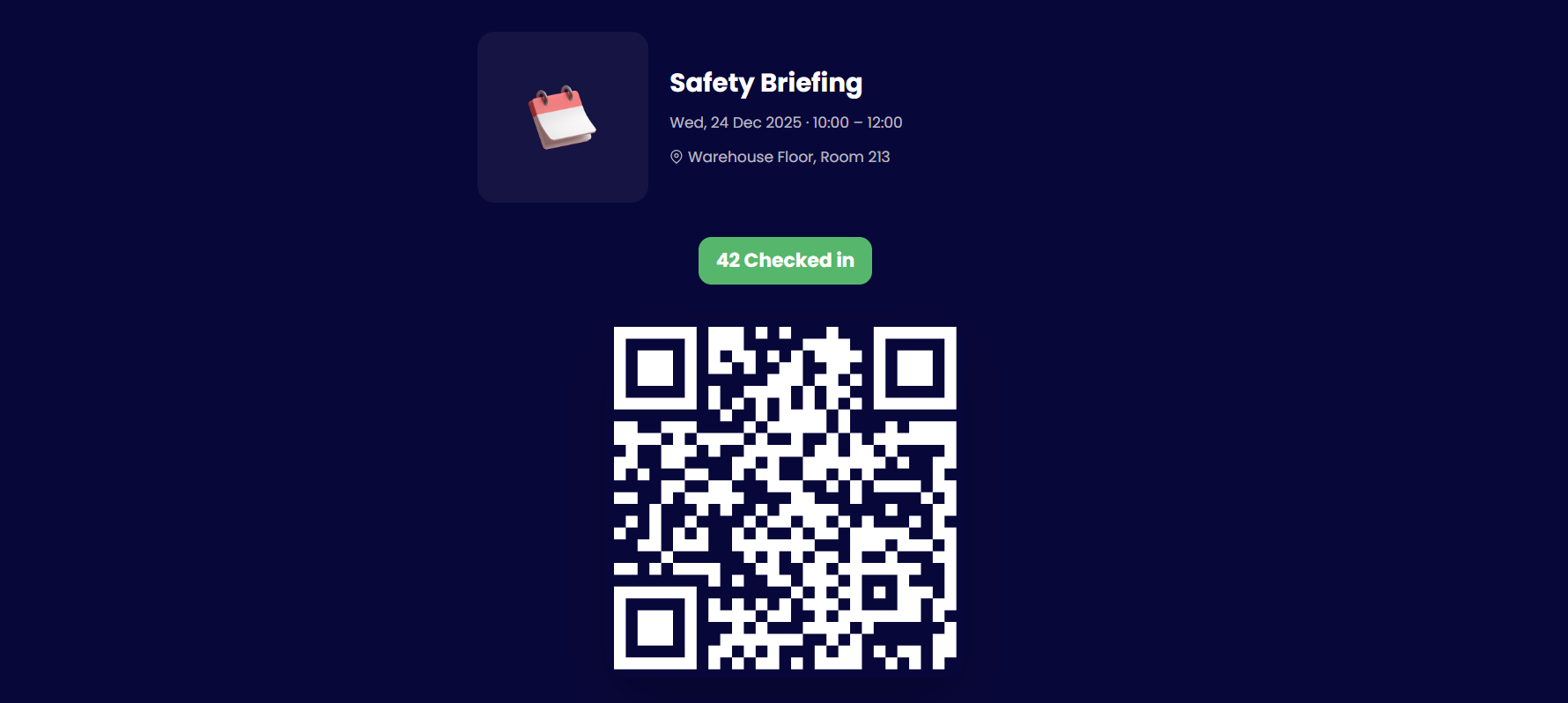
How QR code attendance check-in works
Four steps, and only one of them belongs to you. Everything the attendee does happens on the phone already in their hand.
Create the session
Add a name, date, time, and location. A unique check-in QR code is generated automatically — nothing to design, buy, or download.
Show the code
Open it fullscreen on the projector, print the page for the door, or hold your phone up at the front of the room.
Attendees scan to check in
They point a phone camera at the code, tap the link that appears, enter their name, and submit. About three seconds each.
Watch the list build
Each check-in lands on your attendee list the moment it happens, stamped with the time. The fullscreen code shows a running count as people join.
Check in without an app
This is the part most check-in tools get wrong. They ask a room full of people to install something first, and the check-in stops being a three-second scan — it becomes a store page, a login screen, and a queue at the door.
Scanning a QR code to check in needs none of that. The code resolves to a web page. The page asks for a name. That is the entire flow, on any phone with a camera and a browser.
The camera is the scanner
Every phone sold in the last several years reads QR codes straight from the native camera app, on both iPhone and Android. Your attendees already carry the only scanner this needs.
No account, no password
Attendees never sign up for anything. The page opens in their browser, they enter a name, they are done — nothing to remember and nothing to reset while thirty people wait behind them.
Nobody gets locked out
App-based check-in quietly fails for the person with no storage left, an older handset, a locked-down work phone, or a guest who will not install software for a ninety-minute session.
No install queue at the door
A room asked to download an app checks in at the speed of the venue wifi, one store page at a time. A room asked to scan a code checks in all at once.
Returning attendees skip the typing
Once someone has checked in from a phone, their name is remembered on that device — which is what makes app-free check-in workable for a session that runs every Tuesday.
One honest trade-off: with no account, check-in relies on attendees entering their own name rather than a login proving who they are. A check-in window, plus showing the code only during the session, is what keeps the record trustworthy.
Check-in for recurring sessions
A weekly class does not need a new QR code every week. Switch the session to repeat — daily or weekly, picking the specific days it runs — and the same check-in code carries across every occurrence.
When someone scans, the check-in is counted against the occurrence happening now, or the nearest one coming up. Tuesday's scan lands on Tuesday's register and next Tuesday's on its own, so you get a separate record per session rather than one long list.
Each occurrence can carry its own check-in window too, which matters when Monday runs at nine and Thursday runs at four. Print the code once, put it up once, and stop thinking about it.
More on attendance tracking with QR codes →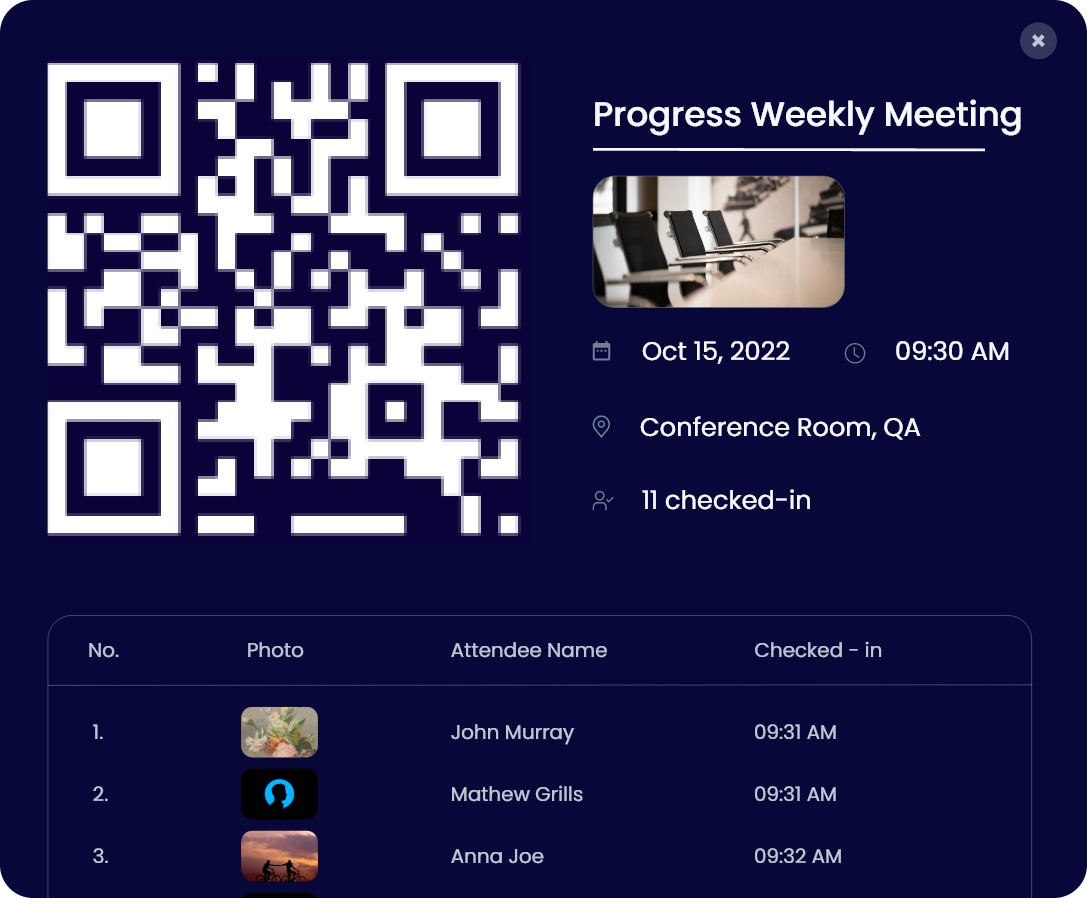
What happens after check-in
The scan is the start of the session, not the end of the job.
A live attendee list
Names appear as people scan, each carrying the time it was recorded. You watch the room fill up instead of counting heads.
A record you can export
When the session ends the record is already complete. Export it to CSV — it opens straight into Excel or Google Sheets — for payroll, a gradebook, or training evidence.
Polls and quizzes on the same phone
If the session has a presentation attached, checking in puts it straight onto the attendee’s screen. No second code to scan.
Polls are optional — plenty of sessions only need the register. See how to run a live poll with a QR code or QR code attendance tracking.
Where to display your check-in QR code
A code nobody can see checks nobody in. All three of these work from the same session.
On screen at the front of the room
If you are presenting, open the fullscreen check-in code before you begin. It fills the screen with the code, the session details, and a live count of who has checked in. Leave it up for the first few minutes, then close it and start your first slide.
Best for: Lectures, trainings, and any session that already has a projector.
Printed and taped up by the door
Open the fullscreen code and print the page from your browser, or screenshot it and print that. A sheet at the entrance suits rooms with nothing projected, and sessions where attendees trickle in.
Best for: Workshops, drop-in sessions, and rooms with no screen.
Held up on your own phone
Open the session on your phone and turn the screen towards the room. Fastest when you are still setting up, or meeting somewhere with no equipment at all — a site visit, a community hall, an outdoor safety briefing.
Best for: Small groups, site visits, and anywhere without a screen or a printer.
Whichever you choose, the same session also produces a plain check-in link — drop it into the calendar invite or the class channel as a fallback.
QR code attendance check-in FAQ
QR code attendance check-in is a way of recording who attended a session: each session gets its own QR code, attendees scan it with a phone camera, enter their name, and the check-in is saved with the time it happened. There is no app for attendees to install and no paper sign-in sheet to type up afterwards.
They open the camera app on their phone and point it at the code. A link appears, they tap it, and the check-in page opens in their browser. No scanning app is involved — the camera reads QR codes natively on both iPhone and Android.
Just a name. There is no account to create, no email to confirm, and no password. That name is then remembered on their device, so a later session takes a scan and a tap.
Yes. Every session also has a plain check-in link you can copy into a chat channel, a calendar invite, or an email. It opens exactly the same page, which covers anyone whose camera will not cooperate.
Each session has a check-in window, and the page only accepts check-ins while it is open. Scan too early and it says the session has not started; scan the next day and it says the session has ended. Every occurrence of a recurring session carries its own window.
There is no queue, because the whole room scans the same code at the same time rather than waiting on one sheet or one device. On the free Starter plan a session takes up to 20 attendees across up to 5 sessions; paid plans raise both limits.