
Live poll with a QR code: one scan, every phone in the room
Put one QR code on screen and your whole audience can answer from their own phones. Each poll opens on every device at once and the result draws itself on the big screen as the votes arrive — no app to install, no link to read out, and no handsets to pass around.
This guide covers what a live poll with a QR code is, the four question types you can run, how a QR code poll fits into a presentation, how to run an online poll with a QR code for a remote audience, and how to set your first poll up in about five minutes.
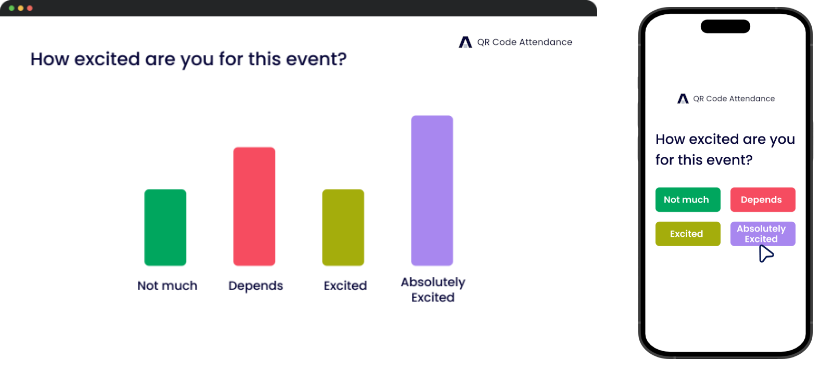
What is a live poll with a QR code?
A live poll with a QR code is a way of asking a room a question and getting every answer back at once. You display a QR code, the audience scans it with their phone camera, and each poll you open appears on their screen — their votes are counted as they arrive and the result is drawn on the big screen in real time. There is no app to install, no link to spell out, and no handset to pass around.
- Time to join
- One scan — no app, no account
- Results appear
- Live, as each vote lands
- Question types
- Polls, quizzes, Q&A, true/false
How does a live poll with a QR code work?
A QR code is a link in visual form, which makes it the shortest path between a room and a question. Everyone who can see the code is already in the poll — whether it is on a projector, a printed card at the door, or a message in a call.
- 1
One code puts everyone in the same session
Your presentation carries a single QR code. Project it, print it, or paste the link into a call — the audience points a camera at it and lands in your session. The code belongs to the presentation rather than to a person, so nothing has to be issued seat by seat.
- 2
Each poll opens on every phone at once
When you reach a poll slide the question appears on every screen in the room simultaneously. People answer from where they are sitting, which means the quiet half of the room votes just as easily as the front row.
- 3
The result draws itself as votes arrive
Responses are counted the moment they land and the chart on screen redraws live. You are looking at the room’s answer before you have finished asking the question, and the whole deck exports to PDF when the session ends.
Four ways to poll a live audience
All four question types live in the same deck and are answered through the same QR code, so you can move from a quick opinion poll to a scored round to an open question without asking anyone to join anything twice.
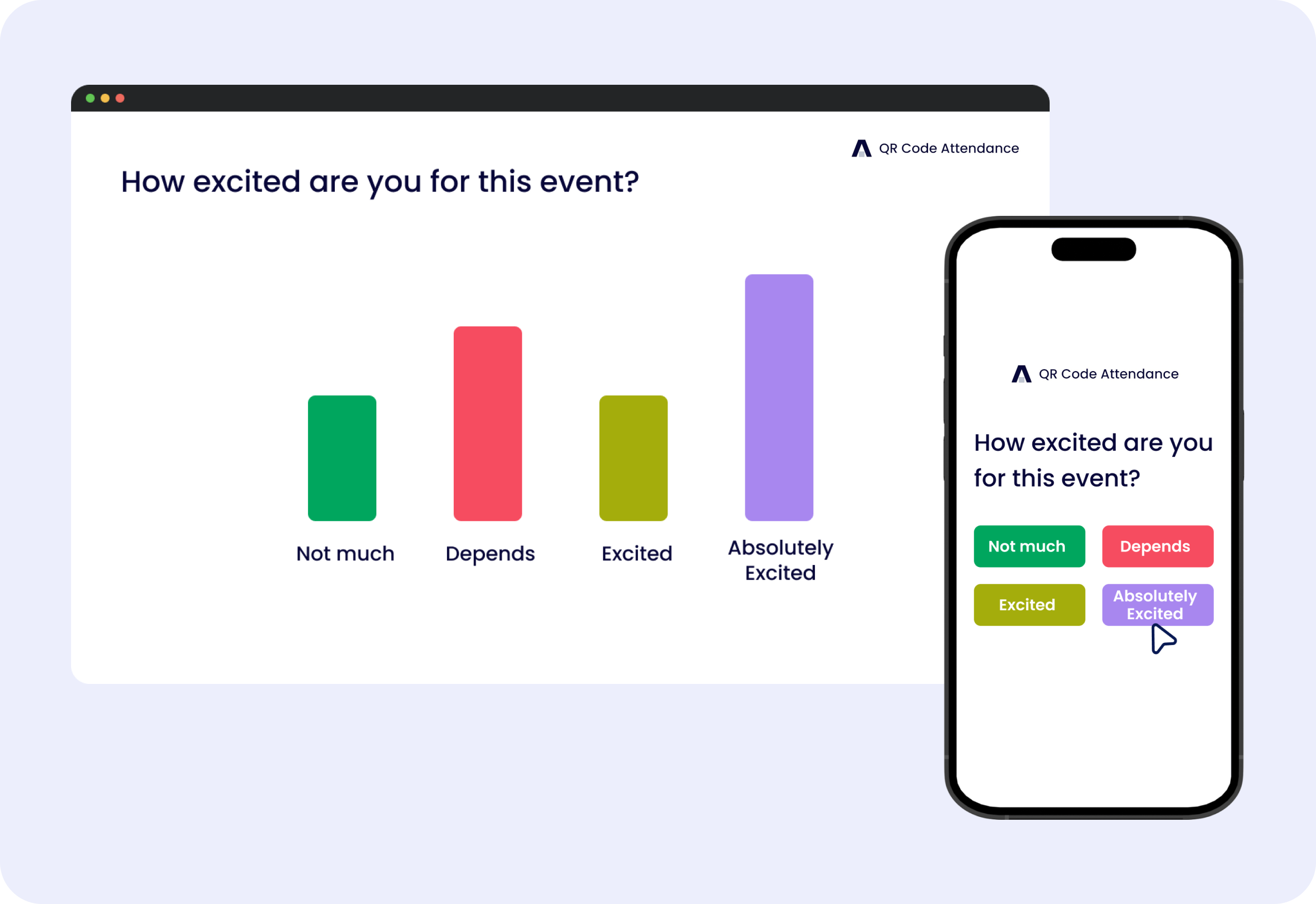
Multiple Choice / Poll
Transform passive listeners into active participants. Our live polling and multiple choice questions feature lets you instantly collect opinions, gather feedback, and create immersive, two-way communication with your audience.
Explore Multiple Choice / Poll →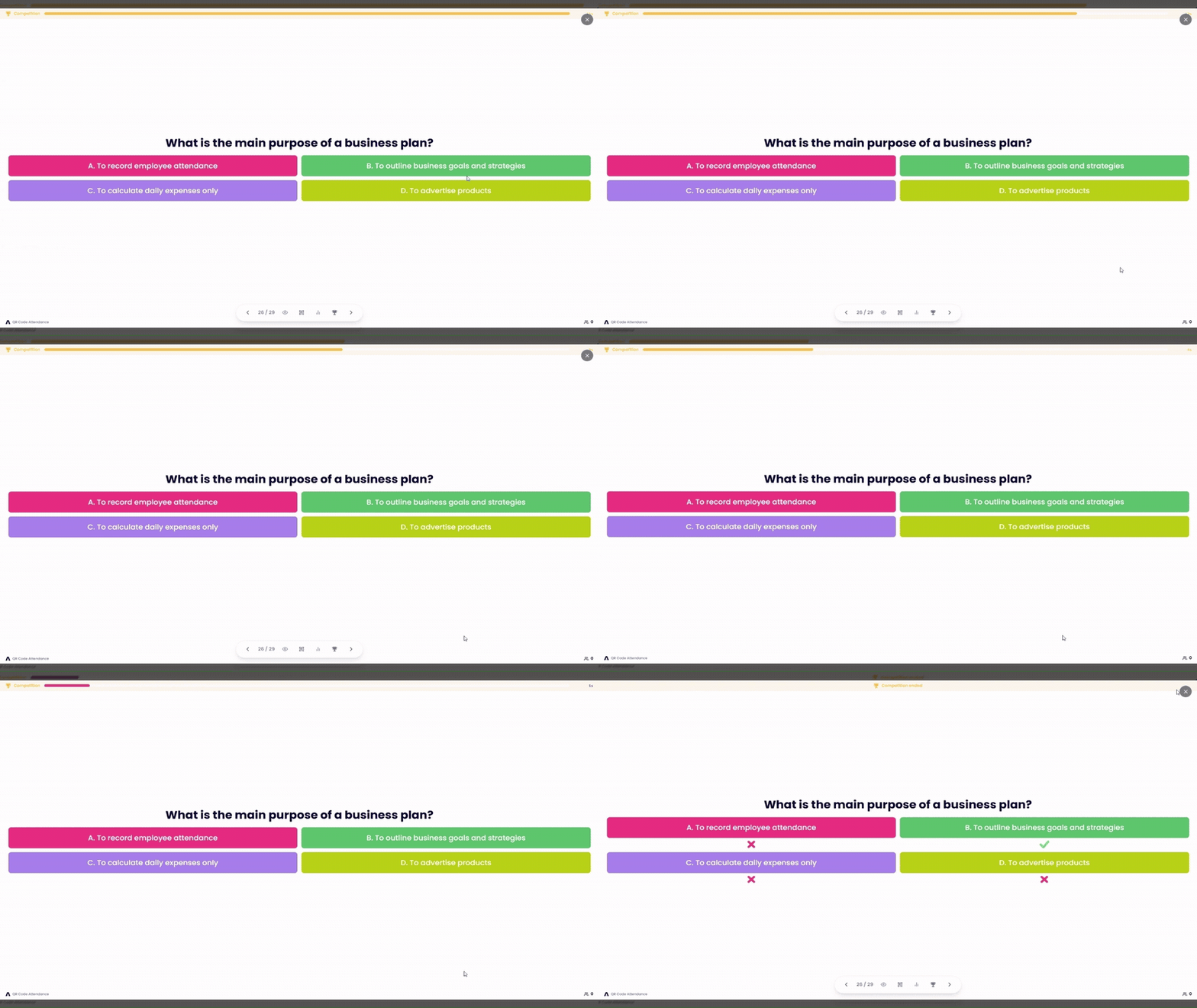
Quiz Competitions
Turn any presentation into a game. Quiz competitions award points for correct answers and speed, with a live leaderboard that sparks friendly rivalry and keeps your audience engaged from the first question to the last.
Read the live competition QR code guide →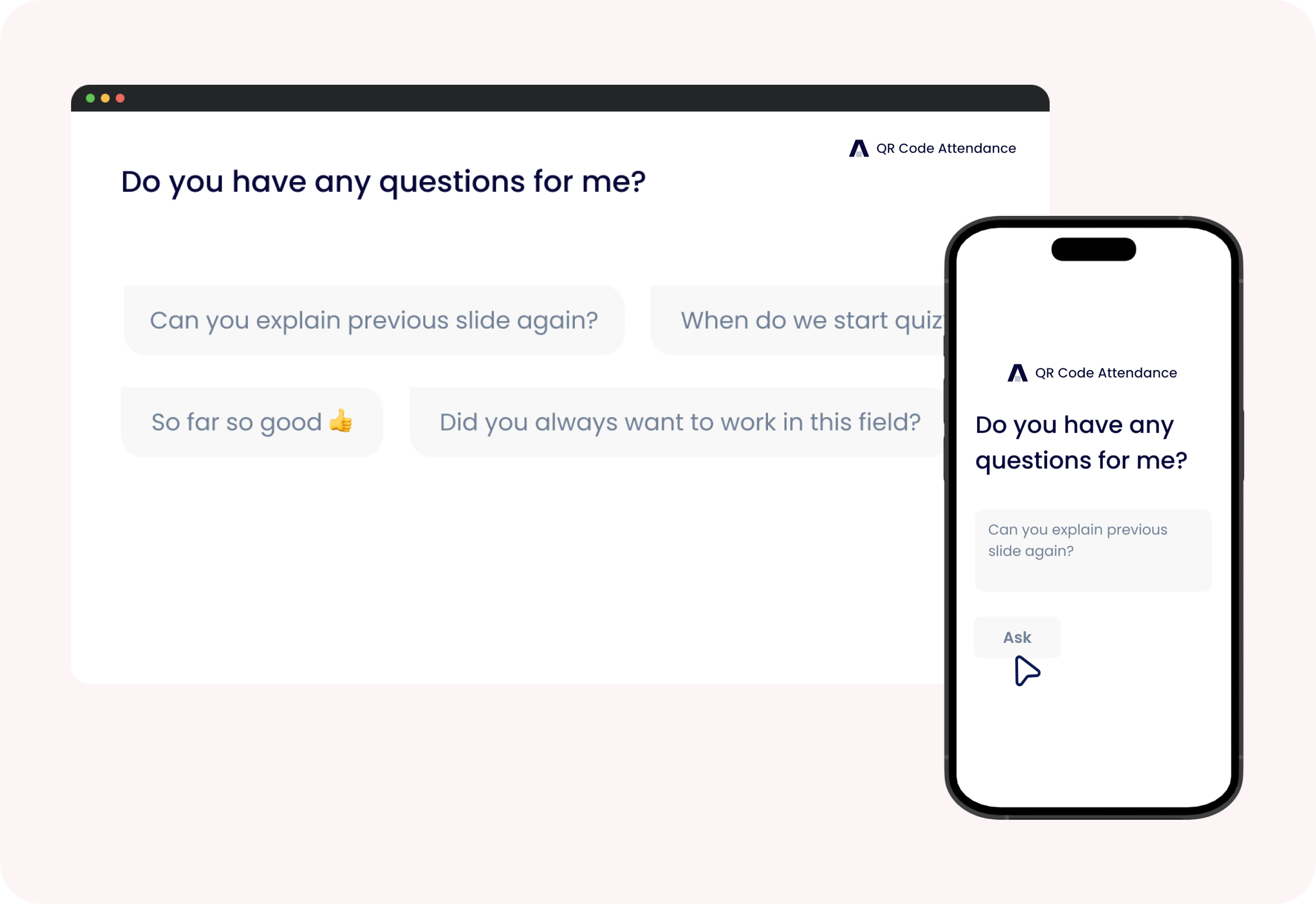
Open Ended
Our user-friendly interface makes it effortless for your audience to speak up. They simply type their questions, comments, or suggestions from their phones, and you — as the presenter — can address them instantly.
Explore Open Ended →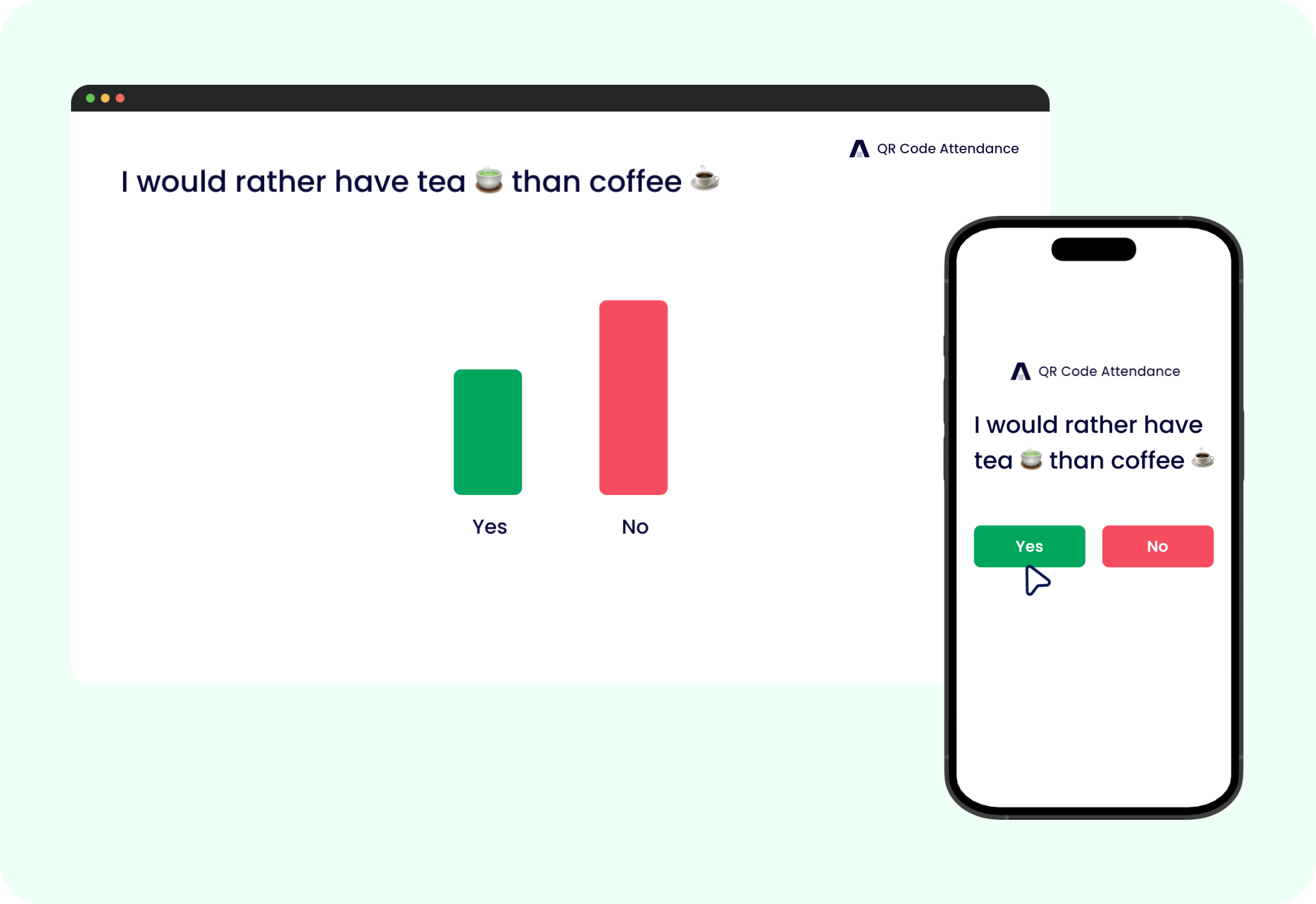
This or That / True or False
Perfect for educators, trainers, and presenters — use quick true/false statements or this-or-that choices to challenge your audience, spark debates, and stimulate critical thinking, all in real time.
Explore This or That / True or False →QR code polls for a presentation
A poll only works in a talk if asking it costs nothing. Here the question is a slide in your own deck and the audience is already in the session, so the poll lands in the flow of the presentation instead of interrupting it.
The poll is a slide, not a detour
A poll is added to your deck the same way a title or an image slide is, and it plays in sequence. You are not alt-tabbing to a second tool mid-talk and asking the room to wait while you find the right browser tab.
One code covers the whole presentation
The QR code belongs to the presentation rather than to an individual question, so the room scans once at the start and every poll you reach afterwards opens on the phones already in the session. A deck with eight polls still only needs one scan.
Keep the deck you already have
Presenting from PowerPoint, Google Slides, or Keynote? Put the join QR code on a slide of your own and run the interactive slides from this deck when you reach them — or paste your existing content in and run the whole talk from one place.
The room can see itself answering
A QR code poll for a presentation earns its place by changing what is on the screen. The chart builds while people are still voting, which turns a slide the audience watches into one they are waiting on.
What you presented is what you export
When the session ends the deck exports to PDF with each poll’s results in place, so the record of what the room answered lives in the same document as the slides that asked.
It pairs with the register
If the presentation belongs to an event, the same scan that checks an attendee in carries them into the deck. One code at the door produces both the attendance record and the poll responses.
Presenting to a class or a training cohort? QR code attendance records who was in the room from the same scan that opens your polls.
Online polls with a QR code
Nothing about a QR code needs the audience to be in the room. Run an online poll with a QR code on a video call, a webinar, or a hybrid session — the code is on the screen you are already sharing, and every answer lands in the same chart.
Share the code the way you share the screen
On a video call, the QR code is on the slide you are already presenting. Attendees point a phone at their own monitor and they are in — and if they would rather stay on the laptop, the same code has a join link they can paste from the chat.
Remote and in-room votes land in the same chart
A hybrid session has one session, not two. People in the room scan the projector, people at home scan the shared screen, and every response is counted into the same result rather than into a spreadsheet you reconcile afterwards.
An online poll survives a quiet call
Nobody unmutes to answer a question, but almost everybody will tap an option. An online poll with a QR code gives a silent call something to respond to and gives you a read on a room whose cameras are off.
Why poll with a QR code rather than a link
Live polling rarely fails at the question. It fails at the join — the URL read out twice, the room code mistyped, the app that will not download on venue wifi. Every one of those loses people before the first vote, and a scanned code removes all of them.
Nothing has to be typed
A spelled-out URL or a numeric room code costs you a minute of the room mistyping it, and you lose the people who give up. A camera pointed at a projected code has nothing to get wrong.
The whole room joins at once
A code on screen can be scanned by two hundred people as quickly as by twenty. There is no queue, no list to check, and no bottleneck at the door.
No app between you and the answer
The poll opens in the phone’s browser. Nobody installs anything, creates an account, or hits an app store on conference wifi — which is where most audience response tools quietly lose half the room.
It works in the room or on a call
Project the code for an in-person audience, or share the join link in the chat for a remote one. Both groups land in the same session and their votes go into the same chart.
One scan covers check-in and polling
When the presentation belongs to an event, the attendance QR code that checks people in carries them straight into the deck. The register and the polls come from the same scan rather than two.
The code outlives the session
A presentation’s join code is stable, so the same printed card or slide keeps working every time you run the deck. Print it once and reuse it for the whole term or the whole conference.
How to run a live poll with a QR code
There is no separate QR generator to visit and no second tool to keep in sync. Creating the presentation creates the code — here is the whole process, from an empty deck to a room voting.
- 1
Create a presentation
Sign up free and add a presentation. It can stand on its own, or belong to an event when you also want a record of who attended.
- 2
Add your poll slides
Drop in multiple choice polls, quiz competitions, open-ended questions, or true/false challenges, and write them alongside your normal content slides.
- 3
Show the QR code
Open the join code full screen and project it, or print it for the door. It encodes a stable link, so the same code works every time you run the deck.
- 4
Go live and let the room in
Press Go Live to open the session. The audience scans, enters a name, and follows your slides from their own phones — you can watch the joined count climb before you start.
- 5
Run the polls and read the room
Advance to a poll slide and the question opens on every phone. Results build on screen as votes arrive, and the finished deck exports to PDF when you are done.
Step-by-step instructions are in the Help Guide.
Live poll with QR code FAQs
It is audience polling where people join by scanning a code rather than typing a link or installing an app. You display one QR code, everyone scans it with their phone camera, and each poll you open appears on their screen with the results drawing live on yours.
Add a poll slide where you want the question asked and it plays in sequence with the rest of the deck. The join QR code is generated with the presentation, so there is nothing to embed by hand — show the code once at the start and every poll slide after it opens on the phones already in the session.
Yes. Put the join QR code on a slide in your existing deck and switch to the interactive slides when you reach a poll, or paste your content in and run the whole talk from one place. Either way the audience scans the same code and votes from their phones.
No. Every modern phone camera reads QR codes natively and the poll opens in the browser. There is nothing to install and no account to create — participants just enter a name and start answering.
You do not need a separate QR generator. Create a presentation, add your poll slides, and the join QR code is generated for you — open it full screen to project it, or print it for the entrance.
Yes. Results are drawn on the presentation screen as votes arrive, so the whole room watches the answer take shape. It is usually the most useful part of the poll — people are far more engaged by where the room landed than by the question itself.
Multiple choice polls for opinions and feedback, quiz competitions with speed-based scoring and a leaderboard, open-ended questions for Q&A and brainstorming, and this-or-that or true/false challenges for quick debate.
Yes. On a video call the code is on the slide you are already sharing — attendees scan it off their own screen, or open the same join link from the chat if they would rather answer on the laptop. In a hybrid session the room and the remote attendees join the same session, so their votes are counted into one chart.
Yes. If the presentation belongs to an event, attendees scan the attendance QR code to check in and continue straight into the deck, so one scan produces both the register and the poll responses.
Participants join with a name of their choosing rather than an account, so a poll is as anonymous as the name someone types. Charts show the totals for each option rather than who picked what, which is what keeps people honest in a feedback poll.
Yes. The Starter plan is free forever and includes up to 5 presentations with every question type, live results, and the join QR code included — no credit card required.
Ready to poll your next audience?
Pair live polling with our QR code attendance solution and one scan both checks the room in and opens every poll.